
In this lesson, you’ll learn about
- The default Next.js 15 project folder structure using the App Router.
- the difference between using the src folder and not using it in your Next.js project stucture
- What each default file and folder in the folder structure does, and common mistakes to avoid.
- Best practices for your Next.js 15 project folder structure
If you would like a more brief description of the Next.js 15 project default folder structure for beginners, you can check out this note. Alright, having said that...lets's dive into this!
Would you like to use the src directory?
When creating a new Next.js project , you would be asked several setup prompts. One of those prompts is:
Would you like to use the src/ directory? (yes/no) If you answer "yes" to that prompt, your project will be structured as fig A in the image below. on the other hand, if you answer "no", your project would be structured like fig B.
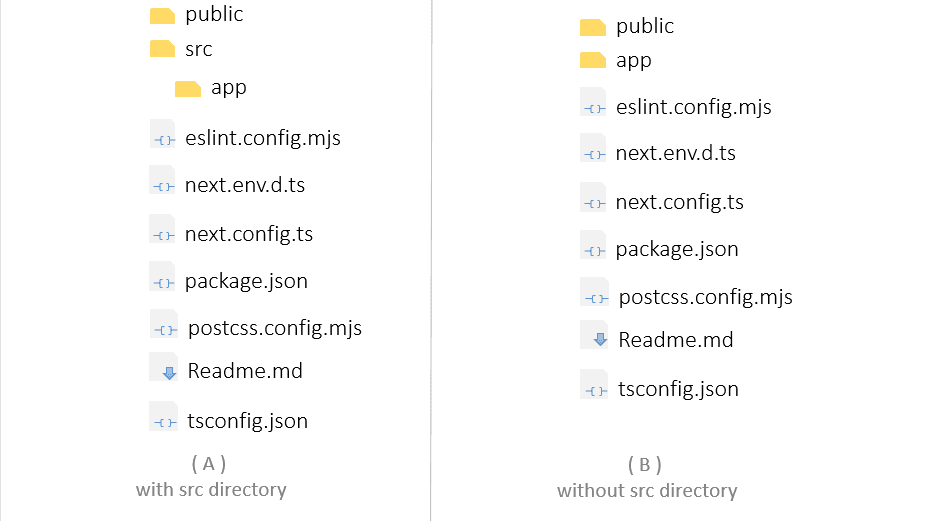 default folder structure of a Next.js 15 project using the App Router- with and without the src directory
What’s the difference? Which folder structure should you use?
Don’t worry— we’ll cover that shortly.
But first, let’s understand what each folder and file in the Next.js 15 folder structure is used for.
The Next.js folder structure discussed in this lesson uses the App Router that was introduced in Next.js 13. Today, more than ever, this has become the recomended standard. Don’t worry if you don't know what the App router is, we'll talk about it in another post.
For now, let's understand what each key folder and file in the default Next.js 15 project folder structure is used for.
Files and Folders in Next.js 15 Project structure
Top level Folders
Top-level folders are located in the root directory of your Next.js folder structure.
They organize your application’s code and static assets like images, fonts, and CSS.
 Top level folders of a Next.js 15 project folder structure (with and without the src directory )
By default, the top-level folders are:
- .next folder
- node_modules folder
- app folder
- public folder
- src folder (optional)
Did you notice that the .next and node_modules folder are not shown in the image of the top level folders above? we'll talk about those folders shortly,
App folder
The app folder is the core of your Next.js folder structure. This folder holds your pages, layouts, templates and loading state UI (the user interface that is shown when component is still loading) and is used to determine which page is shown when users visit your Next.js app. By default, the app folder contains a page.tsx file (or page.jsx if you're not using Typescript). When someone visits the "/" route of your Next.js application, the default functional component in the page.tsx file is what would be rendered to the view.
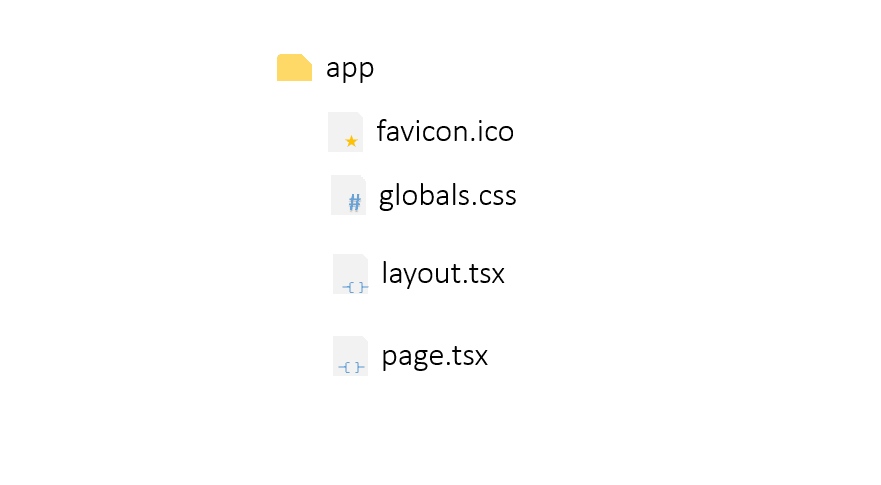 The page.tsx and layout.tsx, Favicon.ico, globals.css - the default files in the app directory of a Next.js 15 project
Don’t worry, we'll talk some more on routing later.
In the older versions of Next.js, a separate pages folder was used to hold pages of your application. It’s still been used today, but it is recommended to use the App folder (from the new App Router) in the current Next.js 15.
public folder
The public folder stores static assets such as images, icons, and fonts. Files placed here are served directly from the root path. That been the case, you can simply access the files in the public folder by appending your domain with a "/" (foward slash) and the name of the file or folder you're trying to access. Feel free to organize the public folder as your project needs, but avoid deeply nested folders. One level deep is best. The files stored in this folder can be accessed directly from the url using your browser.
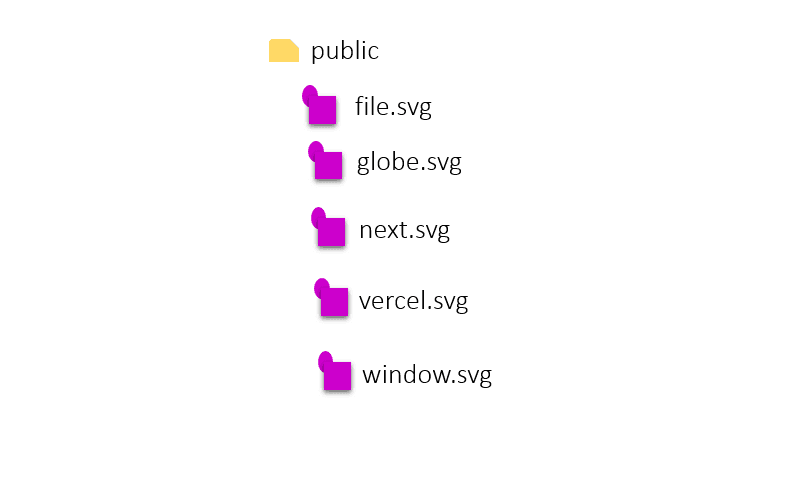 The default files in the public directory of a Next.js 15 project
.next folder
This is the build output folder generated when you run next dev or next build.
This build is what is served to users who visit your Next.js app.
This folder is not created when you first create your new Next.js project. Instead, it is automatically created when your run the project for the first time (either in development or production mode ). If deleted, Next.js will recreate it when you re-run the app. Also, Next.js 15 automatically attempts to cache static versions of the pages of your application in the build folder, unless the page is one that needs to be rendered dynamically (more on this in another article). Those pages that are rendered dynamically are not part of the build folder.
src folder (optional)
When you choose to use it in your Next.js project, your app folder and other source files inside it are placed inside the src folder for cleaner organization. Basically, projects work the same with or without the src folder. Using it is simply a convention to keep your root directory tidy, especially for larger apps. Also, it makes your project folder structure easier to maintain when used properly.
The node_modules folder is also, part of the folder structure.
This folder is created automatically when you run npm install.
It contains all the third-party libraries your project depends on.
Top level files
These are the files in the root directory of your Next.js project. These files help configure your app, manage dependencies, and define settings like imports, scripts, and environment variables.
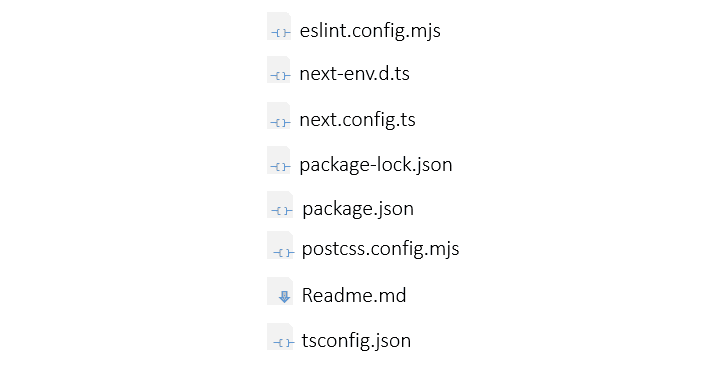 The default top level files of a Next.js 15 project folder structure (excluding the .gitignore file)
eslint.config.mjs
This file is use to configure ESLint, a tool that checks your code for errors and makes sure you follow coding standards.
next-env.d.ts
This is a special file that tells Typescript the types that Next.js provides. You don't need to edit this file, Next.js manages it for you.
This file is not tracked by git. Also, it is only created if you choose to use Typescript in your Next.js project.
package-lock.json
This file is used to keep track of the exact version of the third party libraries your project depends on (dependencies) and their sub-dependencies. That way, if you or someone else installs this project later, you both get the same dependencies that were used in creating the project in the first place.
package.json
Keeps track of your dependencies and project scripts.
postcss.config.mjs
This file is used to provide a plugin for processing your Tailwind css utility classes.
The create-next-app tool adds this file automatically if you choose to use Tailwind css in your Next.js project during the project setup.
next.config.ts
This file customizes your Next.js app. It can define redirects, enable experimental features, or adjust how images are handled. It is a general rule of thumb to avoid copy-pasting configs from the internet without actually Knowing what it does to your project.
If you choose not to use JavaScript in your Next.js project, the create-next-app tool would give you the JavaScript equivalent of this file (next.config.js)
Readme.md
This file is used to describe your project. By default, Next.js adds instructions on how to :
- run the development server (
npm run dev) - build the project (
npm run build) - start the production server (
npm start) - links to the Next.js docs
Though the file is created by default, feel free to edit it. The reason for the file is to help you describe your project in a way that would help you or anyone else understand what the project is about.
tsconfig.json / jsconfig.json
Controls how imports and paths work in your project. Both files are the same. The first (tsconfig.json) is the Typescript version. If you’re not using Typescript, Next.js generates jsconfig.json for JavaScript projects.
When a new Next.js project is created, it is automatically initialized with git. With that, Next.js also includes a .gitignore file
Files in the app folder
The default files in the app directory of a Next.js 15 project folder structurefavicon.ico file
The little icon of the website you see at the title bar for the page
globals.css file
The general css file for your Next.js project. You can have others, but this is the default base css file.
layout.tsx file
The main layout for your Next.js app. This layout is used accross the entire application and should not be deleted.
layout.tsx is the Typescript version of the layout file. if you're not using Typescript, Next.js creates a layout.jsx file instead
page.tsx file
This file contains the content that is rendered in the browser when a user visits the root url ("/") of your Next.js app
page.tsx is the Typescript version of the page file. if you're not using Typescript, Next.js creates a page.jsx file instead
Files in the public folder
The default files in the public directory of a Next.js 15 projectThe files in this directory as seen in the image above are all svg files. They are used as icons in the default welcome page of your Next.js 15 project.
Next.js 15 folder structure and routing
Determining what page to be rendered for a specific url (routing) is done using the app folder of your Next.js project. Earlier, I mentioned when you visit the root route ("/") of your Next.js application using your browser, the default component exported in the page.tsx file contained in the app directory would be rendered.
It's time for us to talk a little bit more about that (routing).
The page.tsx and layout.tsx, Favicon.ico, globals.css - the default files in the app directory of a Next.js 15 folder structureNotice the layout.tsx file in the app directory as well?
As you might have guessed, the layout.tsx file contains the UI to be used as a layout (container or wrapper) for the page.tsx file.
The layout is also a default exported component. For the root route ("/"), when the page.tsx file is rendered, the result (UI) is placed (sloted) inside the rendered UI of the layout.tsx file.
How to create your own routes
As an example, let's say, you're building a landing page for a client who provides two services- solar installation and CCTV installation.
- You want to have a single page that briefly describes each service.
- And also, two respective pages that provides more details about each corresponding service.
- To visit the services page, the user should visit the url "http://localhost:3000/services".
- To visit the page that talks only about the solar installation service, the user should visit the url "http://localhost:3000/services/solar-installation".
- To visit the page that talks only about the CCTV installation, the user should visit the url "http://localhost:3000/services/cctv-installation".
Alright, now that the requirements are clearly stated, let's create the routes in our app folder.
for the example we're about to try, i'll encourage that you create a Next.js 15 project and actually try it out.
Creating the Services page
-
First, we'll create another folder called "services" in the app directory of our sample Next.js project.
 create a services folder in the app directory
 -
Secondly, create a page.tsx file inside the just created services directory
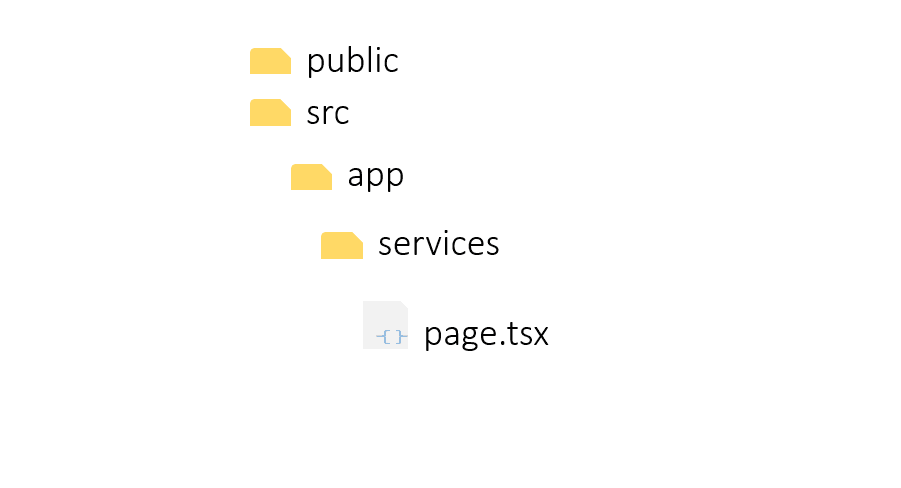 create a page.tsx file in the just created services folder
After adding the page.tsx file, this folder (services) automatically becomes a route. How do we visit this route?, visit the url below
Terminalhttp://localhost:3000/servicesGood to know- if you visit the URL now though, you'll get an error because the page.tsx file doesn't render any markup. We'll fix that shortly.
- The port used in my development environment is port 3000, yours may be different. If that's the case, please use the correct port number in the url above in place of 3000
-
Create a functional component to be rendered in the page.tsx file
export default function Page() {
return <h1> This is the general services page</h1>
{- Now, we have the page to be rendered when the "/services" route is visited.
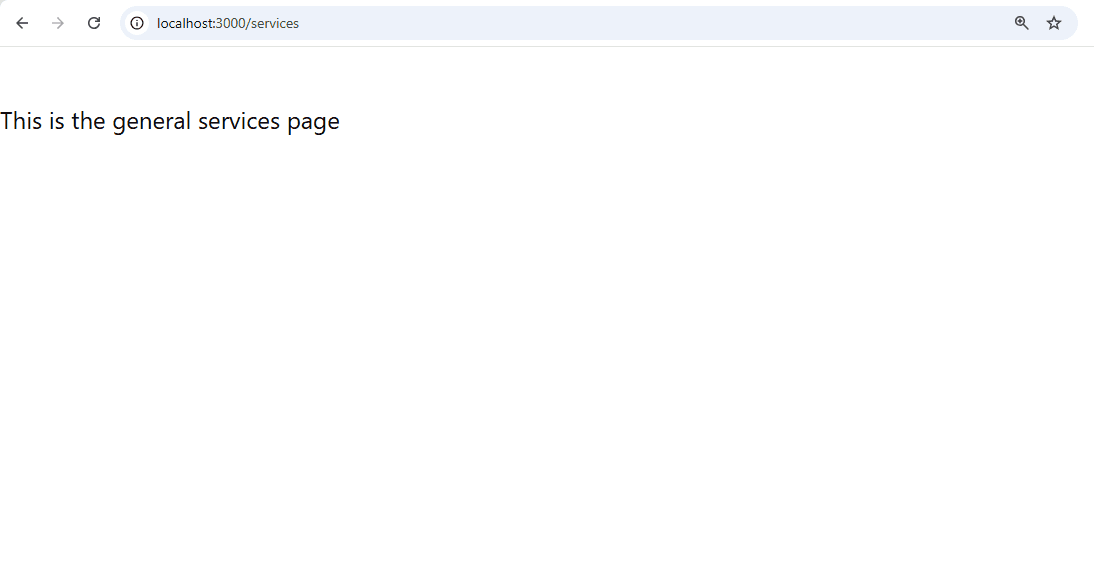 rendered /services route of our sample Next.js 15 project
 Creating the solar installation service route
Remember this page is meant to give more details about the solar installation service and should be accessible using the route
http://localhost:3000/services/solar-installationEarlier, to create the /services route, we had to create a "services" folder in the app directory and a page.tsx file in the folder.
To create a sub-route under "/services" ("/services/solar-installation"), we have to
- create a sub-folder called "solar-installation" inside the services directory
- give the solar-installation folder it's own page.tsx file
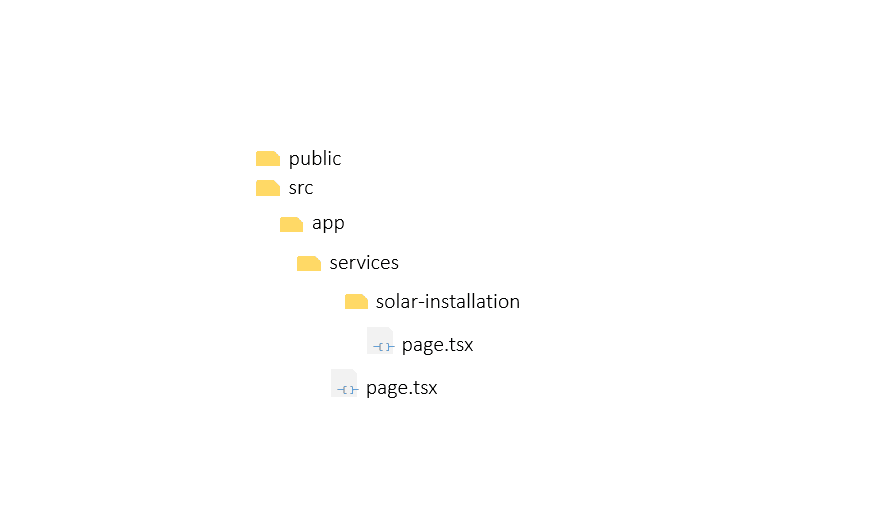 create the services folder and it's page.tsx file in your sample Next.js 15 project
- create the default component to be exported in the page.tsx file
export default function Page() {
return <h1> This is the solar installation service page</h1>
{- Now you can visit the url
http://localhost:3000/services/solar-installation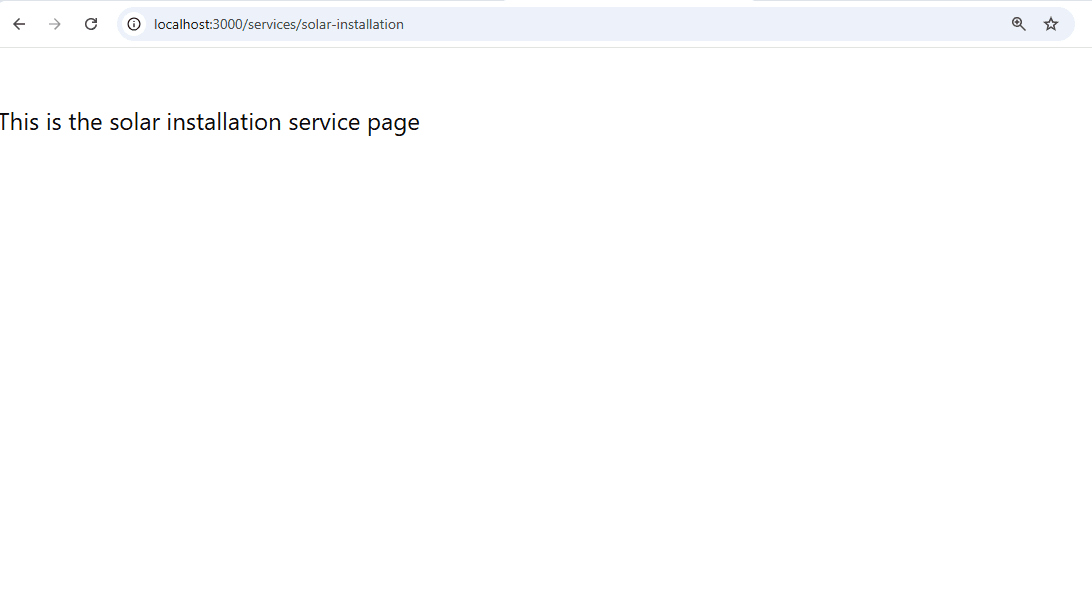 rendered view of the services/solar-installation route in our sample Next.js 15 project
Creating the CCTV installation service route
I hope you can already see that, creating the route for the CCTV installaition service, is just the same as creating the route for the solar installation service.
- create the cctv-installation folder in the services directory
- create the pages.tsx file for the just created cctv-installation folder (directory)
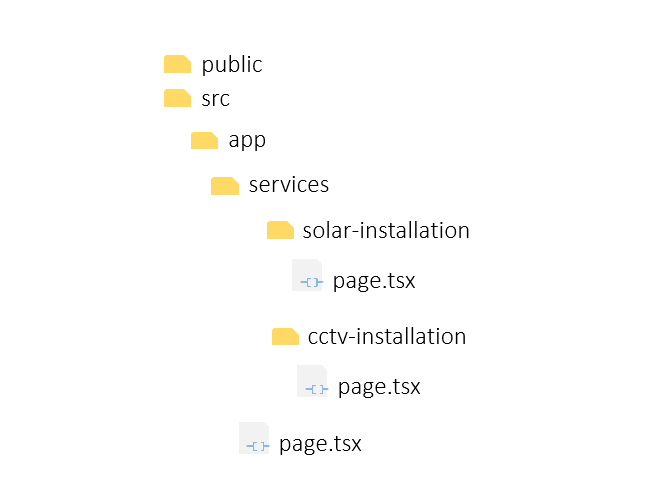 create cctv-installation folder and it's page.tsx file in our sample Next.js 15 project
-
add the default component to be rendered for the just created page.tsx file
tsx solar-installtion folder page.tsx componentexport default function Page() { return <h1> This is the cctv installation service page</h1> { -
Then visit the route using the url
Terminalhttp://localhost:3000/services/cctv-installation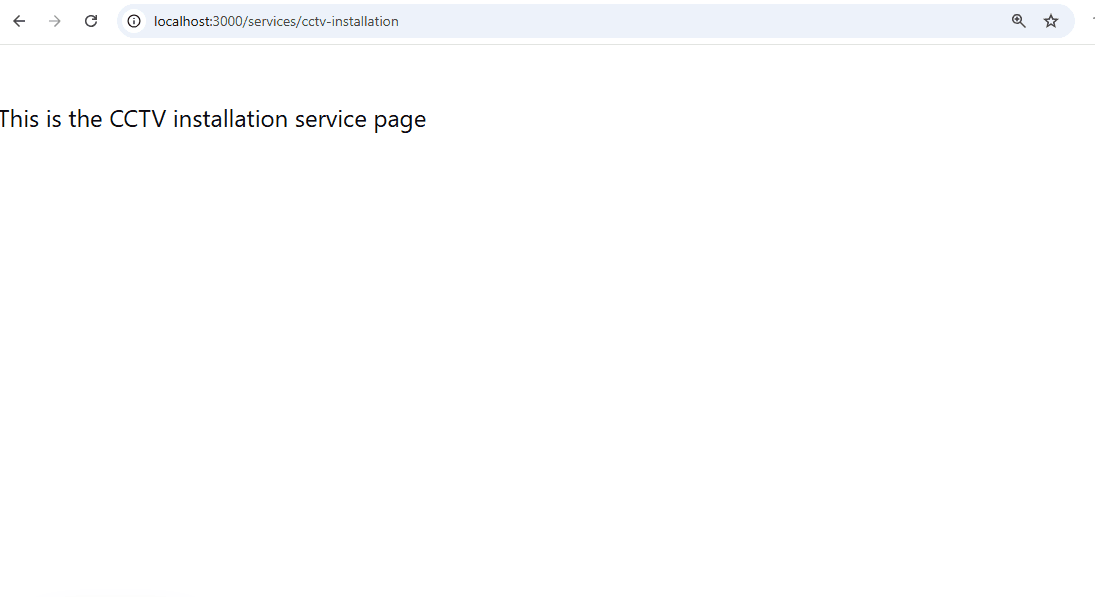 rendered result for the services/cctv-installation route for our sample Next.js 15 projectGood to know
- The port used in my development environment is port 3000, yours may be different. If that's the case, please use the correct port number in the url above in place of 3000
- Notice that url structure follows the folder structure in our sample Next.js 15 project (services/cctv-installation)
- The folder is automatically treated as a route when you add a page.tsx (or page.jsx if you're not using Typescript) file in the directory.
And with that, we have a simple Next.js 15 project, that renders a custom view for 3 specific routes...
Terminalhttp://localhost:3000/servicesTerminalhttp://localhost:3000/services/solar-installationTerminalhttp://localhost:3000/services/cctv-installation
Private Folders
Private folders give you the opportunity to explicitly tell Next.js, "hey, I don't want this folder to be treated as a route"- and of course, Next.js listens!.
To make a folder a private folder, simply prepend an underscore('_'), to the folder name.
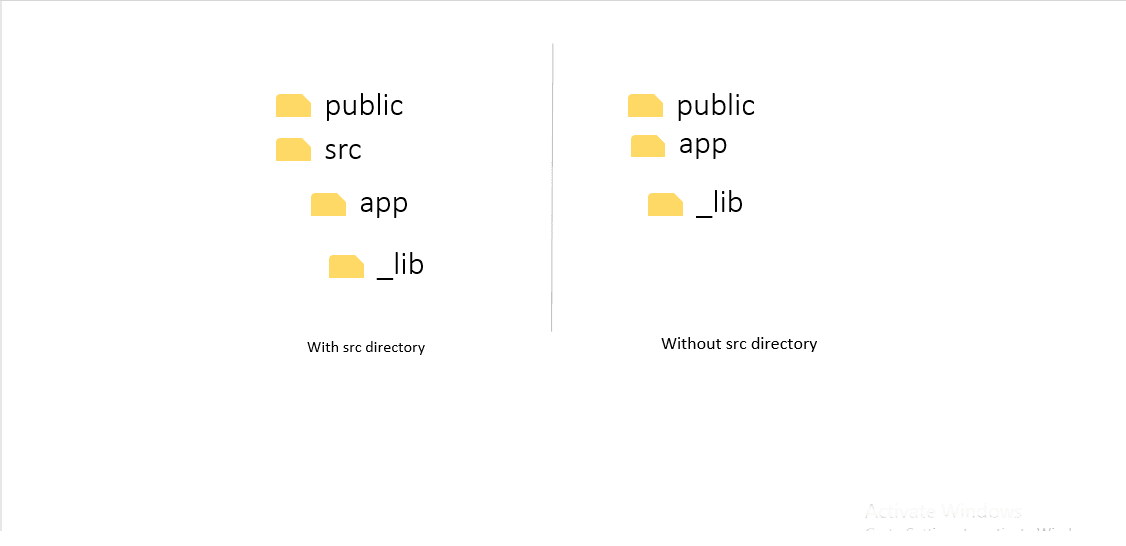 a private folder '_lib' placed in the app directory of a next.js 15 project folder structure
Now, if you try to navigate to a private folder like you would a route folder with your browser, you would get a 404 - page not found error.
Route Groups
While this blogpost is not about routing, it's tempting to talk about Route groups (at least briefly) because it's one of the many features in Next.js that is made possible by means of the Next.js Folder structure.
Frequently asked questions
Do I have to use the App Router in Next.js 15?
No - You don't have to use the App Router in your Next.js 15 project.
The Pages Router is still supported, but the App Router is the modern default and it gives you
newer features like nested layouts, server components and streaming, e.t.c
Where should static assets be placed?
static assests like images, fonts, and icons are stored in the public directory of your Next.js folder structure. Files in this directory are served from the root path.
How does routing work with the app directory?
The page.tsx(or page.jsx if you're not using Typescript in your Next.js project) file in the app directory is the Ui component that is rendered when the "/" route is visited on your browser. To create other routes, you'll need to create another folder in the app directory with it's corresponding page.tsx (or page.jsx if you're not using Typescript) containing it's own UI component to be rendered. As an example, let's say you create a folder called notes in the app directory. The notes folder also has its page.tsx file. To visit that route in your browser, you need to enter the url "/notes".
There's more to this
I'll keep updating this post as much as needed. I hope to talk more on private folders and route groups. For the time been, I'll stop here.
Thank you and see you soon.